HOW TO UPLOAD A CERTIFICATE ?
Prerequisites
To get started, ensure you meet the following requirement:
- A valid account in the developer portal. An app can be created in a team or in an individual account.
- Once you have an account with the appropriate rights, ensure your customer certificate meets the following requirements:
- Size: Maximum 8 MB.
- Format: Must be in CRT, CER, PEM, or DER format.
- The certificate can be deposited either in a team or in an individual account. A team is a group of authenticated users that can request access to Private API documentation and create Apps on a team level.
Step 1: Devportal Connection
- Click on the «Log in» button in the header

- Complete the fields: Username and password
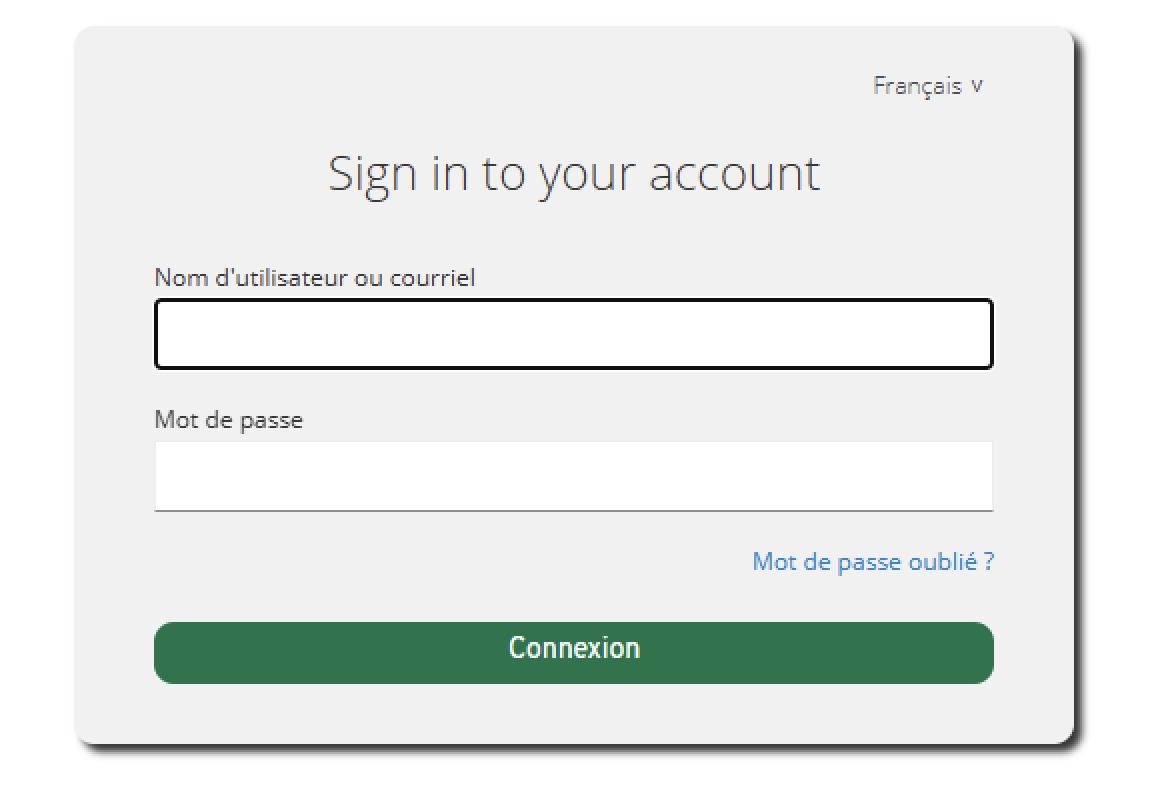
- Click on the «Connection» button
- Complete the unique use code generated on your mobile
- Click on the «Connection» button
Step 2: Certificate upload
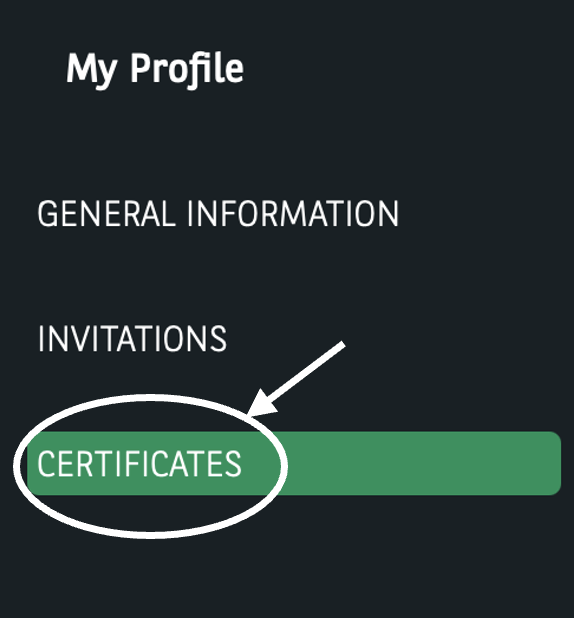
- Click on the profile button then on the «My profile» page

- Click on «Certificates» in the left menu
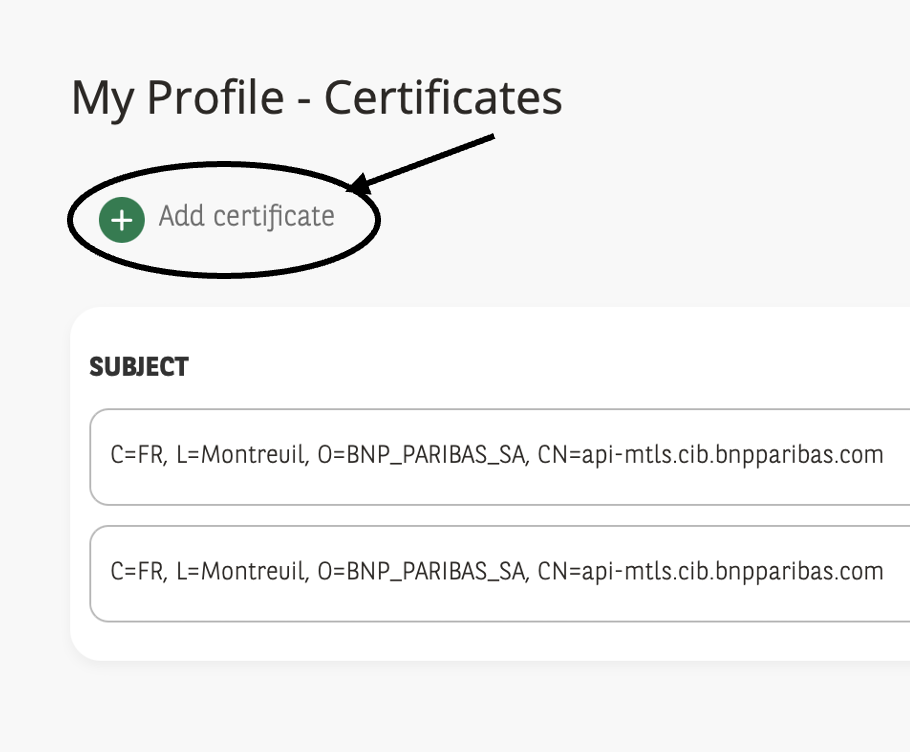
- Click on the «Add certificate» button and submit a valid certificate
- In the «Certificates» tab, you can view the list of your certificates with their status
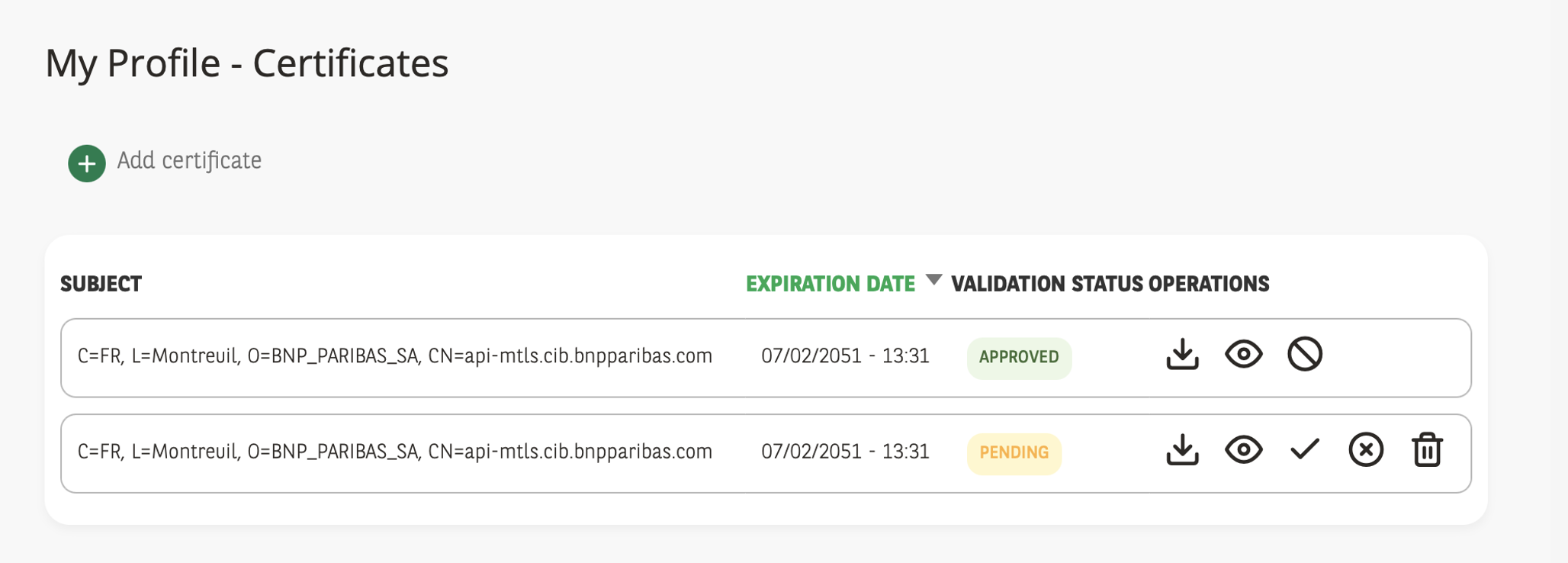
The newly deposited certificate has «PENDING» status until its validation or revocation by Certificate Managers
Once the certificate has been validated, it can be used during the «APP» creation
A certificate may have the following status:
- APPROVED
- APPROVED (EXPIRATION SOON)
- PENDING
- PENDING (EXPIRATION SOON)
- DECLINED
- INACTIVATED
- EXPIRED
Step 3: Receipt and validation notification
- After uploading your certificate, you will receive a deposit confirmation email in your mailbox. The notification includes the details of the certificate and its status.
- Once a Certificate Manager validates your certificate, you will receive a second notification in your mailbox. This email will provide the validation or revocation status of the certificate.
List of Authorized Certification Authorities
For new partner enrolments only Extended Validation authorities are now allowed (green in list)
| Certificate | Serial number | Expiry date (dd-mm-yyyy) |
| DigiCert SHA2 Extended Validation Server CA | 0c79a944b08c11952092615fe26b1d83 | 22/10/2028 |
| Thawte EV RSA CA G2 | 07c2c6d32c6f0e0aabac0dd0f9fcd5b3 | 02/07/2030 |
| Entrust Certification Authority - L1M | 61a1e7d20000000051d366a6 | 15/10/2030 |
| Sectigo RSA Extended Validation Secure Server CA | 61a1e7d20000000051d366a6 | 15/10/2030 |
| GlobalSign Extended Validation CA - SHA256 - G3 | 48a402dd27920da208349dd1997b | 21/09/2026 |
| SSL.com EV SSL Intermediate CA RSA R3 | 03a3f4d0603052a337ce380a8830318c | 22/03/2034 |